
A template is the shape of a video: its sections in order, each with a type, a title, guidance and a duration. When you pick one for a script, the outline starts from it. Channel setup imports up to five starter templates that fit your channel, and Templates under DNA offers three ways to add more: Browse the library, New template and Import template. Only the workspace owner can add or change templates.
Browse the library
Browse the library opens the 70 system templates: 39 for long-form videos and 31 for Shorts. They’re grouped into 11 categories, from Teach & Explain, Stories and Reviews & Comparisons to Lists & Rankings and Promotion & Sponsors.
Narrow the list by format (All, Long-form or Short), pick a category under All categories, or search. Import copies a template into your workspace, where you can change it without touching the original.
Import from a link
Import template learns a template from a public YouTube video or Short whose structure you like. Paste its link, and Neveshte works out its sections. If the video follows one of the library’s templates, you get that template (or the copy you already have) instead of a new one. It costs 5 credits. See Learn from any public video.
Build your own
Choose New template to build the sections yourself, or open any template to change it.
- Give it a Name and a Description, and pick Long-form or Short under Format.
- Under Template sections, choose Add Section and pick the section’s type. Give it a title, a Duration and a line of Guidance.
- Drag a section by its handle to move it. Select a section to open or close it, and Remove the ones you don’t need.
- Choose Create Template, or Save Changes on a template you opened.
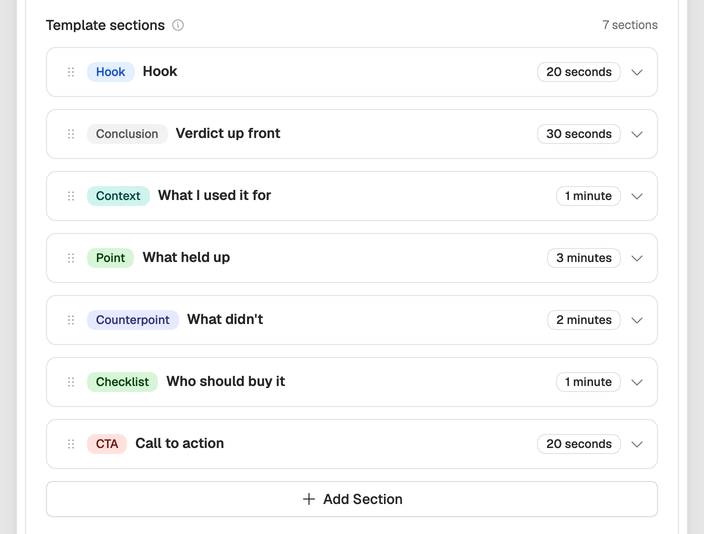
A template’s sections use 20 types: the structure of a script, such as Hook, Point, Story or CTA. Scripts also have four production cues for the shot list, B-roll, Shot, Screen Recording and On-screen Text, which templates leave out. See Sections for how they look in the editor.
Tip. Edit an imported template’s guidance to match how you actually open and close your videos. It’s the quickest way to make drafts feel like yours.