
A workspace can hold as many channels as you like, which helps if you run a second channel or write for a client. Each channel keeps its own details, and you pick which one a script is for when you start it. Only the workspace owner can add, edit or remove channels.
Add a channel
Open Channels under DNA in the sidebar. Each channel has a card with its category, niches, language and the DNA it holds.
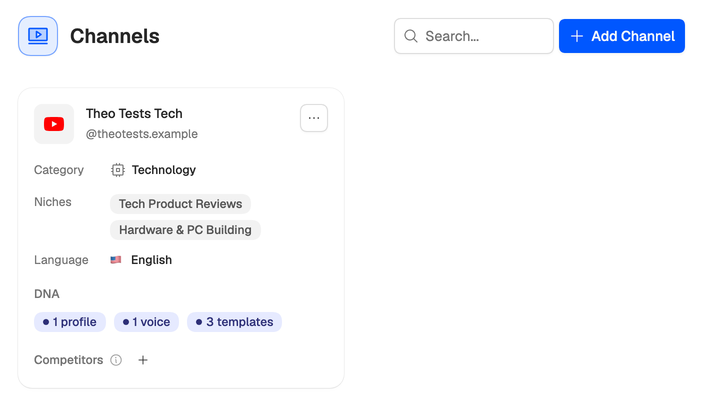
- Choose Add Channel.
- Paste the channel’s URL or @handle under Channel URL or @handle. Neveshte looks it up as you type and shows the channel it found. Only YouTube channels can be added.
- Answer the two questions: What language do you make videos in? and What do you make?
- Choose Create channel.
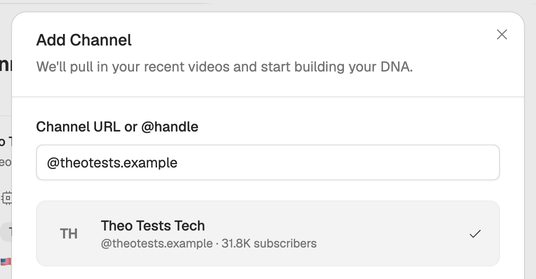
Channel setup starts reading the channel right away. If the window says This channel is already in your workspace., it’s on the Channels page already.
Edit a channel
On the channel’s card, open the menu behind the three dots and choose Edit channel, or select the channel’s name. In Edit channel you can change:
- Channel Name. How the channel is named across the app.
- Category. The main kind of video the channel publishes. Setup picks one for you.
- Niches. Up to three narrower topics inside that category. They keep scripts for this channel on the subjects it covers.
- Language. The language your videos are spoken in. New scripts for this channel are written in it. See Script languages.
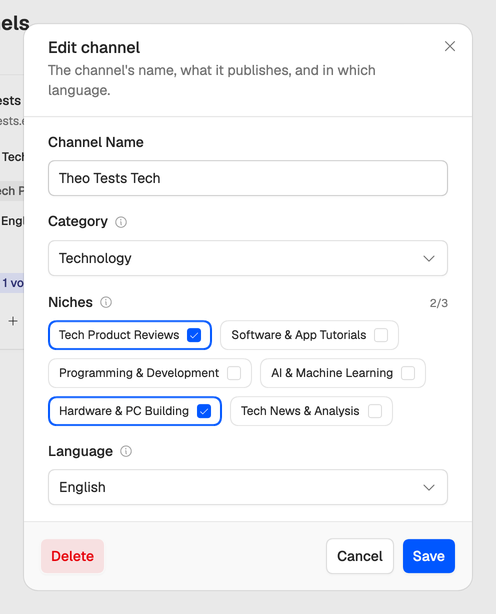
Choose Save. Setup’s guesses are usually close, but checking the category and niches takes a minute and helps every script after.
Remove a channel
Choose Delete channel in the card’s three-dot menu, or Delete in Edit channel, then confirm. It can’t be undone, and adding the channel again runs setup from the start, so if you only want to correct its details, edit it instead. Your profiles, voices and templates stay in the workspace.
The channel won’t add? See Channel setup problems.