
Neveshte writes each script in your channel’s language, so a Spanish channel gets Spanish scripts without you asking. The app itself is in English.
How the language is chosen
When you start a script, Neveshte looks for a language in this order:
- The channel you picked for the script.
- The profile, if there’s no channel. A profile drafted by channel setup or from a video keeps the language it was drafted in.
- Your prompt, or the idea you started from, if neither has one.
If none of those settle it, the script is written in English. Once a script has a language, it stays fixed for that script.
Set your channel’s language
When you add a channel, you either pick its language (English, Spanish, German, French, Portuguese, Turkish, Arabic or Persian) or leave it on Detect from my videos, and channel setup works it out. To change it later:
- Open Channels under DNA.
- Open the channel’s three-dot menu and choose Edit channel.
- Pick the language under Language and choose Save.
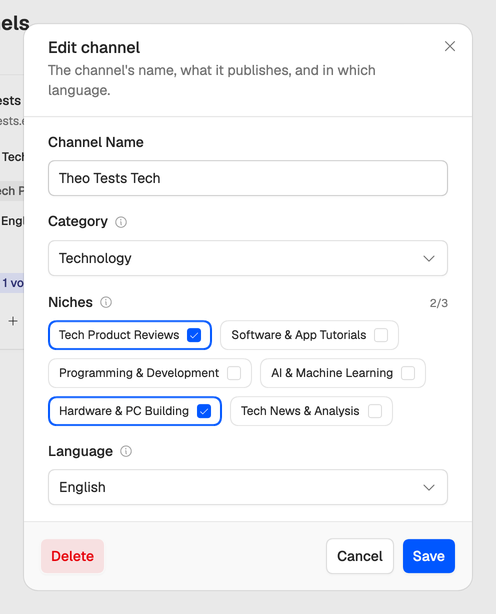
New scripts for that channel use the new language. Scripts already written keep theirs.
Writing in another language
To write one script in a different language, pick a channel set to that language when you start it. When neither the channel nor the profile sets a language, it comes from your prompt, so write the prompt in the language you want. See Use Neveshte without a channel.
Right-to-left scripts read correctly in the teleprompter: set Direction to RTL in its settings. See Read from the teleprompter.