
A script in Neveshte is a list of sections, the way a video is a list of beats. Each section has a type, so you can see the shape of the video at a glance and move a part of it without cutting and pasting text.
Section types
There are 24 types. Twenty describe the script’s structure, from Hook, Intro and Context to Point, Story and CTA, with General for anything else. Four are production cues for the edit: B-roll, Shot, Screen Recording and On-screen Text. Use them to note what viewers see while you talk.
To change a section’s type, choose the type at the top of the section (it reads Hook, Point and so on) and pick another from the list, or type to search it.
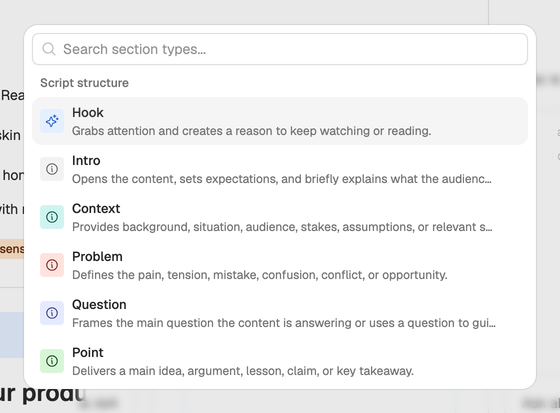
To add a section, press Add section under the last one and pick its type. It’s added at the end, so move it from there. Pressing the down arrow at the very end of the last section also starts a new General section, and Backspace in an empty section removes it.
Section actions
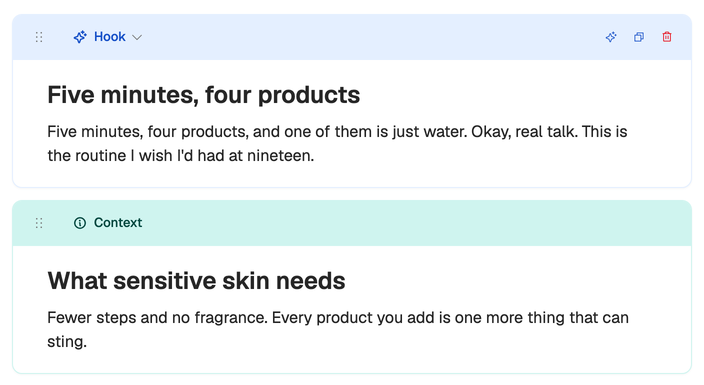
Hover over a section to see its actions at the right of its header:
- Rewrite section with AI (the sparkle) opens the assistant with this section in focus. Say what you want changed, and it suggests a new version to apply or dismiss. See Edit with the assistant.
- Duplicate section (the two squares) puts a copy right below it, to try a second version beside the first.
- Delete section (the trash can) removes it after you confirm. A script always keeps at least one section.
Move sections
- Drag a section by the six dots at the left of its header. On a touch screen, press and hold the dots first.
- With the keyboard, press Tab until the six dots are focused, press Space to pick the section up, move it with the arrow keys, and press Space again to drop it. Esc puts it back where it was.
Undo and redo
Changed your mind about a move or a deletion? Undo section change and Redo section change are in the three-dot menu at the top of the editor. They step through your last 40 changes to the sections themselves (adding, moving, retyping, duplicating and deleting) since you opened the script. Reloading the page starts the history over.
Typing has its own undo inside a section: ⌘Z (Ctrl Z on Windows).
Planning the structure? Reshape it in the outline, before the draft is written, rather than rewriting sections after.