
Every script opens in the same editor, whether compose wrote it or you started it with New script. The title and the script’s details sit at the top, the script itself runs below them as a list of sections, and a rail on the right holds the assistant and the script’s stats.
The header
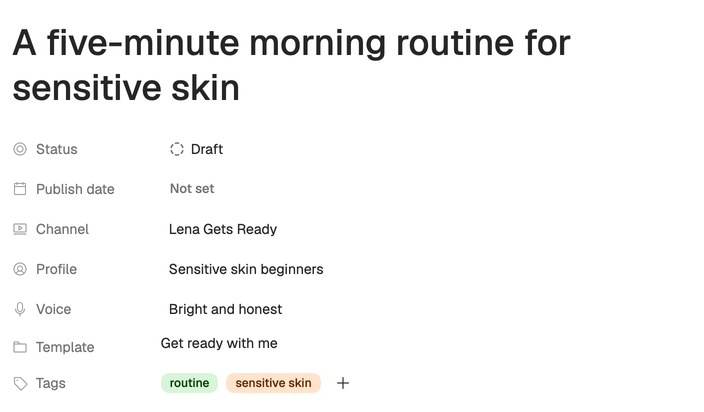
Under the title, each script has:
- Status: Draft, Writing, Ready to record, Editing, Scheduled, Published or Archived. Use it to track where each video is.
- Publish date, for when the video goes out.
- Channel, Profile and Voice: the Creator DNA the script is written from. Change them here, and the assistant writes from the new ones.
- Template, when compose wrote the script from one. It links to the template, and can’t be changed here.
- Tags: press + to pick from your workspace’s tags. Ideas use the same tags, and you create them in workspace settings. See Workspace settings and tags.
The rail
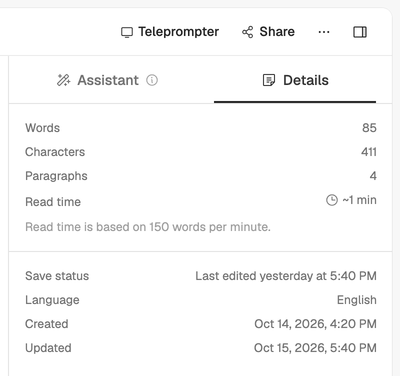
The rail has two tabs. To hide or show it, use the button at the far right of the top bar.
- Assistant: ask for changes and apply its suggestions. See Edit with the assistant.
- Details: Words, Characters, Paragraphs and Read time, then Save status, the Language compose wrote the script in, and when it was Created and Updated. Read time assumes 150 words a minute, so it’s a quick check on length.
Saving
The editor saves as you type, and Save status in Details shows when it last saved. When a save fails, the editor says so:
- A change to the title or the header shows Not saved with Retry in Save status.
- A change to the sections shows a red message with Retry under the last section.
See The editor won’t save for what each message means.
The menu
The three-dot menu in the top bar holds:
- Undo section change and Redo section change, for adding, moving, retyping, duplicating and deleting sections. See Work with sections.
- Open compose, to go back to the compose steps that wrote this script. Scripts started with New script don’t have it.
- Delete script. It asks you to confirm, and it can’t be undone. Owners can delete any script, members the ones they created.
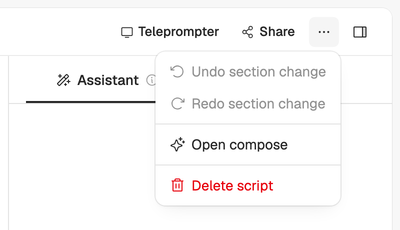
Beside the menu are Teleprompter and Share. See Read from the teleprompter and Share a script or idea.
Get around faster. Press ⌘K (Ctrl K on Windows) to open the command center: quick actions, pages and your workspace’s records. It doesn’t open while you’re typing in a section or a field, so click outside it first, or use the search button at the top of the sidebar.