
The assistant sits in the editor’s rail and reads the script you’re working on, plus the Creator DNA behind it: its channel, profile, voice and template. Ask it for a sharper hook, a shorter section or a better title, and it suggests changes you apply or dismiss. It never changes your script on its own.
Ask
Open the Assistant tab in the rail and type in the box at the bottom. Send with the arrow button, or with ⌘Enter (Ctrl Enter on Windows). Be specific: “make the hook a question”, “cut the second point by half”, “give me five titles”.
To work on one section, choose Rewrite section with AI in that section’s header. The assistant tab opens with the section in focus, and your next message includes it. See Work with sections.
Each person has their own conversation with the assistant on each script, so a teammate’s requests don’t mix with yours.
Apply or dismiss
A change comes back as a card above the message box: Suggested section edit, Suggested new section or Suggested section move. The card shows the section’s type, the new text and why the assistant suggests it.
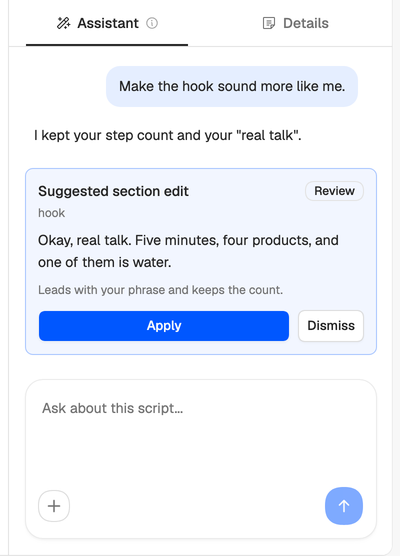
Press Apply to put it in the script, or Dismiss to drop it. Applying costs nothing.
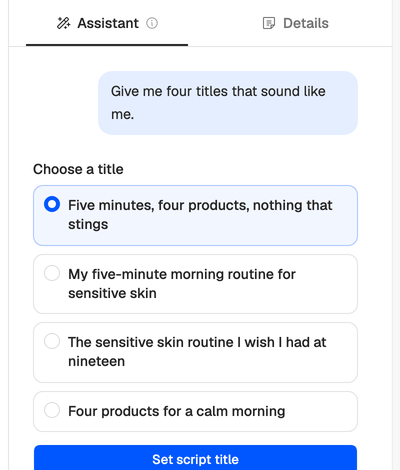
When you ask for titles, the assistant lists them under Choose a title. Pick one and press Set script title.
Sometimes it asks you a question first, with the answer it suggests marked Recommended. Pick an answer and press Continue, or send a new message instead.
Credits
A message costs 1 credit, and so does answering one of its questions. Two kinds of message are free:
- Facts about the script, like “how long is it?” or “how many sections are there?”
- Moving a section to the top or the end, like “move the CTA to the end”.
If an answer fails, or you stop it, the credit comes back. If the workspace is out of credits, the assistant says so. See How credits work and Out of credits.
AI requests are also limited to 60 an hour for each person in a workspace, counting assistant messages, rewrites, idea generation and source actions together. Past that, the assistant answers Too Many Attempts. Wait a while and send again.
Keep it on track
- Stop (the square beside the send button) ends an answer you don’t need, and the credit comes back.
- New context, in the + menu beside the message box, clears the conversation and starts fresh. Use it when you switch from one task to another, so earlier requests don’t steer the next answer. The cleared messages don’t come back.
When the assistant notices you’ve moved on to something new, it marks the break with New topic in the conversation.
Suggestions sound off? The assistant writes from the script’s voice and profile. Check them in the editor’s header, and tune your voice if needed.