
A share link opens a read-only page that anyone with the link can see, no account needed. Use it to send a script to an editor or a client, or to read it on your phone while you record. Scripts and ideas can both be shared.
Create a link
- Open the script or idea and choose Share in the top bar.
- Turn on Anyone with the link can view. It shows Link is live, and a green dot appears next to Share.
- Press the copy button next to the link, or scan the QR code to open it on your phone.
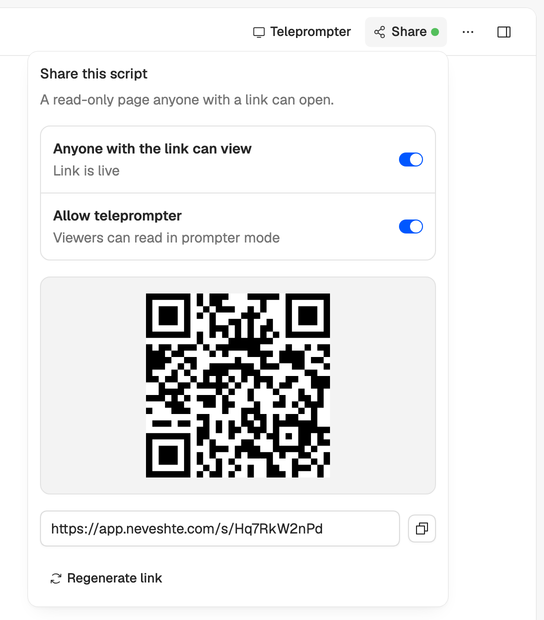
For a script, also turn on Allow teleprompter to give the shared page a Teleprompter button. It’s the easiest way to use your phone as a teleprompter. See Read from the teleprompter.
What people see
The page shows your workspace’s name, the title, the date it was last updated and the text, always as last saved, so your edits reach it without a new link. Nothing else from your workspace is on it. Neveshte doesn’t show who opened a link or how often.
Turn it off or replace it
- Turn off Anyone with the link can view to stop sharing. It shows Link is off, and the link stops working straight away. Turning it on again makes a new link, and the old one never comes back.
- Regenerate link swaps the link for a new one and stops the old one, while the page stays shared. Use it if a link went further than you meant.
Who can share
Owners and members can share any script or idea in the workspace, and turn its link off or regenerate it, while the workspace has an active trial or plan. Commenters can’t.
If the workspace becomes read-only (the trial ended or a payment failed), Share disappears from the editor, and shared pages say Shared content is temporarily unavailable. The same links work again once the workspace has a plan. See My workspace is read-only.
Share links don’t use a seat. People who only read your scripts don’t need to join your workspace.