
When an idea is ready, you can start a script from it in one click. The idea’s title, notes and tags go to the brief as its starting point, and the script stays linked to the idea, so you can always get from one to the other.
From the idea
Open the idea in Ideas and choose the + in its Scripts field (Make script).
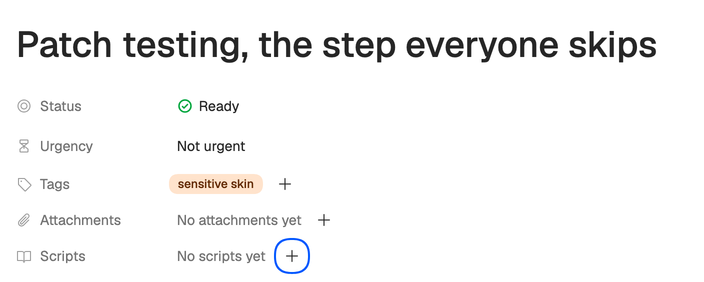
The new script page opens with the idea attached to the prompt. Add a line about what viewers should walk away with if the idea doesn’t say, check the channel, profile, voice and template, choose the format and press the arrow button (Generate script).
On the Ideas page you don’t even need to open it: choose Make Script from the menu at the end of the idea’s row.
From there it’s the usual four steps: Brief, Research, Outline and Write.
From a new script
You can also start the other way round. Open Scripts and choose Generate script. Under Start from an idea you’ll find your four newest ideas (archived ones aren’t offered), and typing / in the prompt lists the same four. Pick one to attach it. For an older idea, open it and use Make script. See Start a new script.
After the script exists
- The idea’s Scripts field lists every script made from it, so one idea can lead to a long video and a Short.
- On the Ideas page the idea shows Converted. Its status stays as it was, so set it to Scripted when you’re done with it. See Status, urgency and tags.
- If you cancel compose partway, what compose produced is discarded, but the idea stays in your workspace.
Tip. The more the idea says about the angle and the audience, the fewer questions the brief needs to ask.