
Ideas is where video ideas wait until you’re ready to write them. Catch one in a few seconds when it strikes, then come back and develop it with notes, links and images. When it’s ready, it becomes a script in one click.
Quick capture
Choose the + next to Ideas in the sidebar, or New on the Ideas page. Quick capture asks for a Title and, if you like, a few Notes. Choose Save idea and carry on with what you were doing.
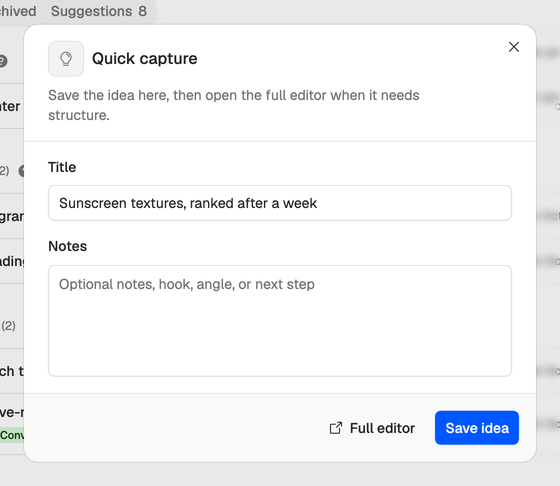
Idea captured. pops up, with Open idea if you want to keep going. You can also start one from the command menu (Cmd+K on a Mac, Ctrl+K elsewhere) by choosing New idea.
Full editor opens a new, empty idea in the editor instead. What you typed in quick capture doesn’t come with it, so pick one or the other.
The full editor
Open any idea to work on it in the full editor. Under its emoji and title (choose the emoji to change it) sit its fields:
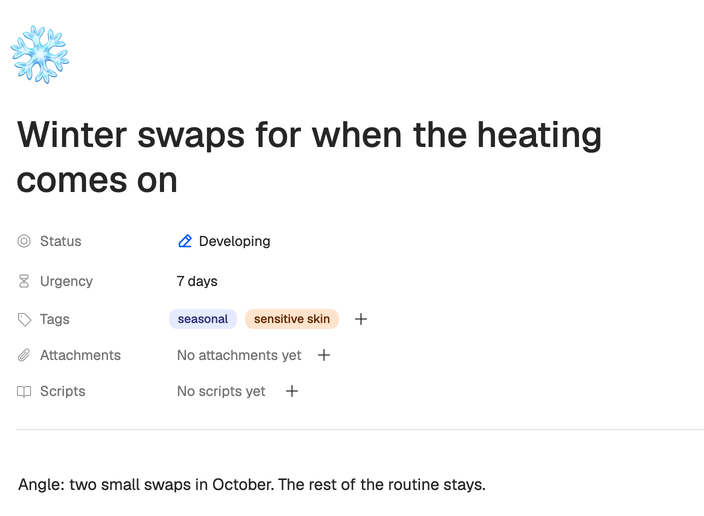
- Status. New, Developing, Ready, Scripted or Archived.
- Urgency. Not urgent, 24 hours, 7 days or 30 days. See Status, urgency and tags.
- Tags, to group ideas by series or theme.
- Attachments. Images such as a thumbnail sketch or a screenshot: JPEG, PNG, GIF or WebP, up to 10 MB each.
- Scripts. The scripts made from this idea, and the + that starts a new one. See Turn an idea into a script.
Below the fields is the body, for notes, outlines and links. Select text to format it, or type / for a menu of blocks to insert. Everything saves as you type. The Details panel on the right shows word, character and paragraph counts, the save status, and when the idea was created and last updated.
Other ways in
Short on ideas? Neveshte can generate a few from your channel for 2 credits, for you to review as suggestions, or pull them out of any public YouTube video for 5. See Learn from any public video.
Tip. Write down who the video is for and what viewers should walk away with. When you turn the idea into a script, its title, notes and tags go to the brief, so the brief has less to ask.