
The workspace owner manages the plan from Billing in the workspace settings. Upgrading from Creator to Team happens right there. Everything else, from your card to cancelling, happens in the billing portal run by Stripe, our payment provider, which you open from the same page.
Upgrade from Creator to Team
On Billing, under Add seats and shared credits, choose Upgrade on the Team card.
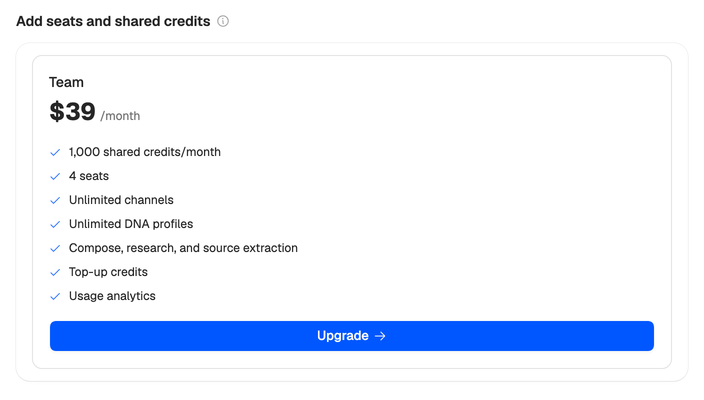
You pay the difference for the rest of your current billing period straight away. Team’s 4 seats are there at once, and your plan credits go up to Team’s 1,000. Top-up credits you already have are kept.
Update your card, switch period or move to Creator
- On Billing, under Plan details, choose Manage subscription.
- Choose Open billing portal.
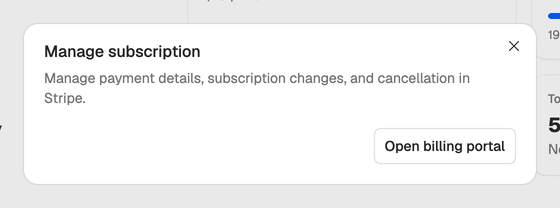
In the portal you can change your card and billing details, change your subscription (such as moving between monthly and yearly, or from Team to Creator) and cancel.
Moving from monthly to yearly takes effect straight away, and you pay the difference at once. Moving from yearly to monthly, or from Team to Creator, starts when the period you’ve paid for ends. Until then you keep your current plan, so Team keeps its 4 seats and 1,000 credits. Nothing is refunded for the rest of the period.
Creator has one seat, so check who still needs access before your Team period ends. See Roles and seats.
If a payment fails
The workspace keeps full access for 3 days while the payment is retried, and a banner at the top of the app says so. To fix it, choose Update payment method on Billing, or the banner’s button. Top-ups and plan changes are paused until the payment goes through. If it hasn’t after 3 days, the workspace becomes read-only until it does. See My workspace is read-only.
Cancel
- On Billing, choose Manage subscription, then Open billing portal.
- Cancel your plan in the portal.
You keep access, and your remaining plan credits, until the end of the period you’ve paid for. Billing shows the date, and a banner at the top of the app counts down to it. Until then you can undo the cancellation with Resume subscription on Billing, or Resume plan in the banner, and nothing changes.
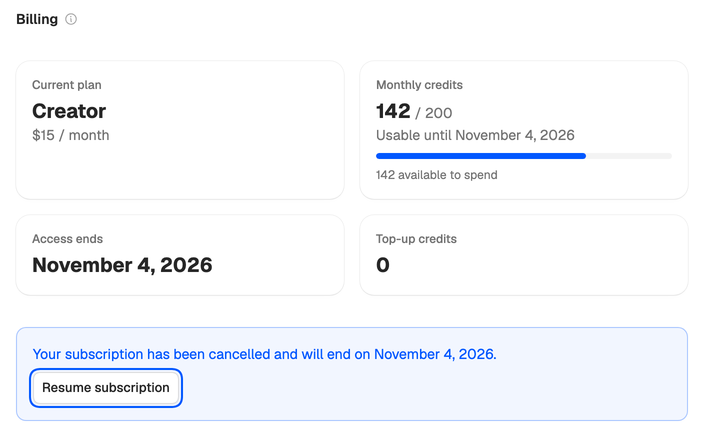
When the period ends, the workspace becomes read-only and its plan credits are cleared. Your scripts, ideas, Creator DNA and top-up credits stay, and picking a plan again lets you write.
Leaving for good? Cancelling doesn’t delete anything. To remove your data, see Delete your account.