
Everyone in a workspace has a role, and the role decides what they can do. There are three: Owner, Member and Commenter. Owners and Members each take one of your plan’s seats, and Commenters are free.
Roles
Owner. Everything: the Creator DNA, members and invitations, the workspace’s name and tags, and billing. Each workspace has exactly one owner, and only the owner can open Workspace settings.
Member. Writes with you:
- Reads the Creator DNA (channels, sources, profiles, voices and templates), but can’t change it.
- Creates and edits ideas and scripts, and deletes the ones they created.
- Uses compose and the assistant, which spend the workspace’s credits.
Commenter. Free, and takes no seat. Commenting isn’t in the app yet, though: today a commenter can sign in to the workspace’s dashboard, but can’t open its ideas, scripts or Creator DNA. To let someone read a script, send a share link instead.
Seats
| Plan | Seats |
|---|---|
| Trial | 1 |
| Creator | 1 |
| Team | 4 |
The owner takes one of them, so Creator is just you, and Team is you and three more. Commenters don’t count, and an invitation only takes a seat once it’s accepted.
When every seat is taken, the invite dialog says Member seats are full. and offers View Team upgrade. To make room, upgrade to Team, remove someone, or change a Member to a Commenter. See Choose a plan.
Change a role or remove someone
The owner manages everyone from Members in workspace settings. Open the menu at the end of a person’s row.
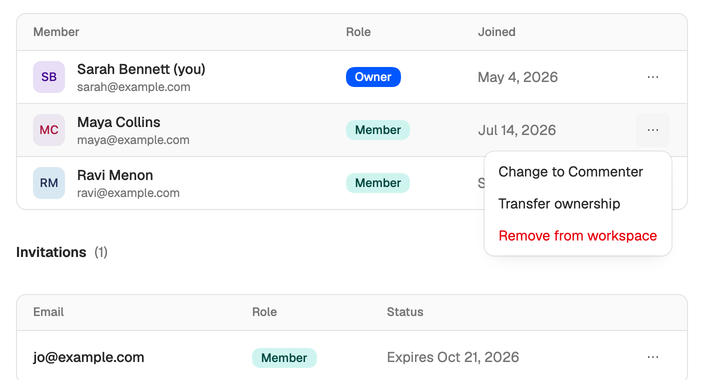
- Change to Commenter frees their seat. Change to Member gives them one again, and reads Change to Member (seats full) when none is free.
- Transfer ownership makes them the owner and you a Member, once you confirm. You both get an email. They take over members, settings and billing. The plan stays with the workspace, billed to the same card until they change it in Billing. Handing over to a Commenter needs a free seat, since you both end up with one.
- Remove from workspace takes their access away as soon as you confirm. Their ideas and scripts stay in the workspace. They don’t get an email, so let them know.
Nobody can change their own role or remove themselves.
Leaving a workspace you own? Owners can’t leave. Transfer ownership first. See Switch, create or leave a workspace.