
Your team works in one workspace and shares its Creator DNA, ideas, scripts and credits. Only the workspace owner can invite people, and each Member takes one of your plan’s seats.
Send an invitation
Open Workspace settings from the menu under your name in the sidebar, then Members. It lists everyone in the workspace and the invitations still out, with Invite at the top.
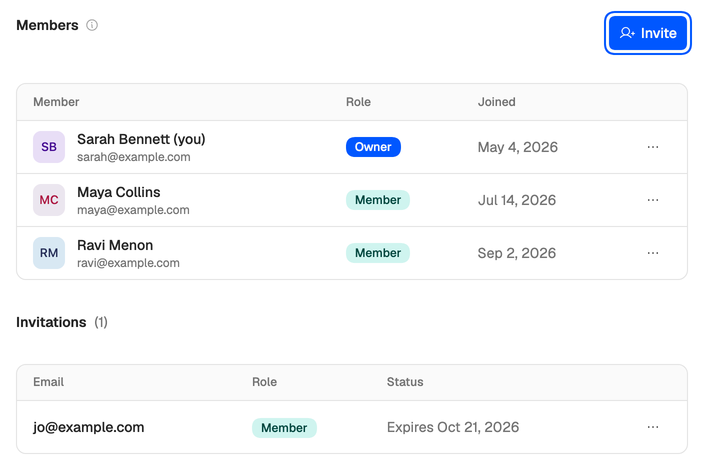
- Choose Invite.
- Enter their email address.
- Pick a Role. Choose Member for anyone who writes or edits with you. A Commenter is free, but can’t open scripts yet (see Roles and seats).
- Choose Send invite.
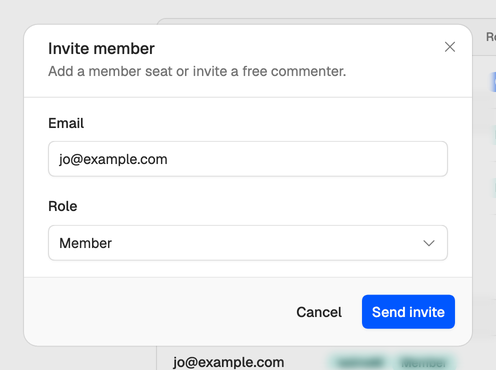
They get an email with a link that works for 7 days. Creator and the trial have one seat, which is yours, so inviting a Member needs Team, which has four. A seat is only taken when they accept. If the dialog says Member seats are full., see Can’t invite someone.
Keep track of it
Invitations wait under Invitations on the Members page, with their status:
- Expires and a date: sent, and waiting for an answer.
- Undeliverable: the email bounced. Check the address for typos.
- Expired: nobody answered within 7 days.
- Declined: they turned it down.
Accepted invitations move to the members list, and revoked ones disappear. To act on one, open the menu at the end of its row.
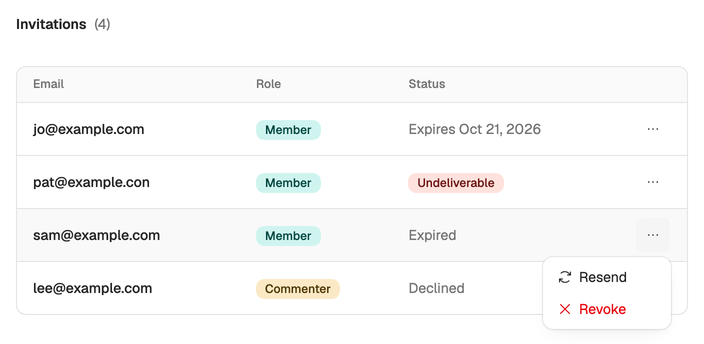
- Resend emails a new link, good for another 7 days, and the old link stops working. It works on expired and declined invitations too.
- Revoke cancels the invitation. An undeliverable one can’t be resent, so revoke it and invite the right address.
What they see
The link opens a page with your workspace’s name and the role you picked.
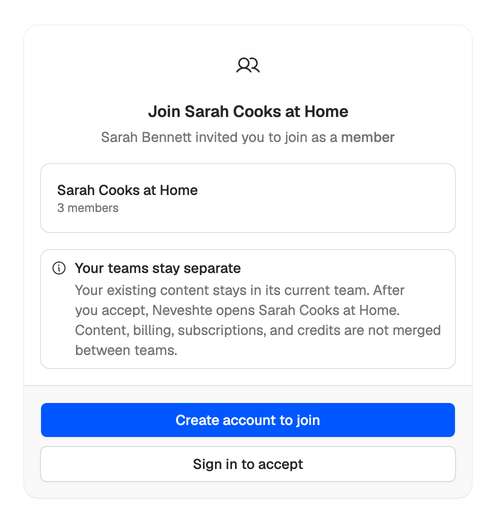
- New to Neveshte? They choose Create account to join and sign up with the address you invited, with a password or with Google. They don’t need a waitlist invite or a verification code: the link proves the address is theirs.
- Already have an account? They choose Sign in to accept, then Accept.
They must use the address you invited. Signed in with another one, the page asks them to sign in with the invited account instead. Once they accept, Neveshte opens your workspace. Every account also comes with a workspace of its own, so they’ll see both in the menu under their name.
Just need someone to read a script? Send a share link instead. Anyone with the link can read it, without an account or a seat.