
Your account settings belong to you rather than to a workspace: your profile, your password and the devices you’re signed in on. Open Account settings from the menu under your name in the sidebar, then pick Profile or Security.
Your profile
Profile opens first. Choose the pencil next to a detail to change it.
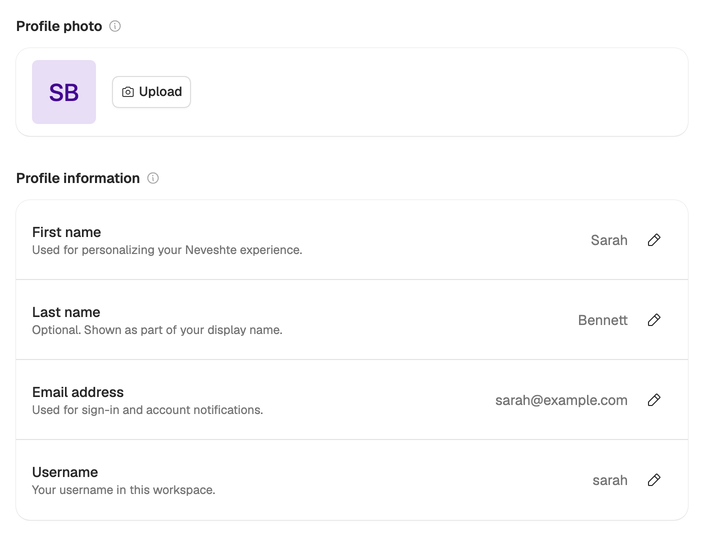
- Profile photo: Upload a JPEG, PNG, GIF or WebP image up to 5 MB.
- First name (required) and Last name (optional): your name is what teammates see in a shared workspace.
- Email address: the address you sign in with. After you change it, the app asks you to verify the new one. Choose Send a new code, then enter the 6-digit code sent to the new address.
- Username: 3 to 30 lowercase letters, numbers and underscores, starting with a letter or number. It belongs to the workspace you’re in, so you can have a different one in each.
Your password
Open Security and choose Change password. Enter your Current password, then a New password of at least 8 characters in both fields, and choose Save password.
If you signed up with Google, you don’t have a password yet, and the button reads Set password. Choose Confirm with Google, then pick one. From then on you can sign in with your email and password, or with Google.
Forgot your current password? Log out and reset it from the sign-in page. See Sign in and verify your email.
Your devices
Security also lists every device signed in to your account, with its browser, system, IP address and when it was last active. The one you’re using is marked This device.
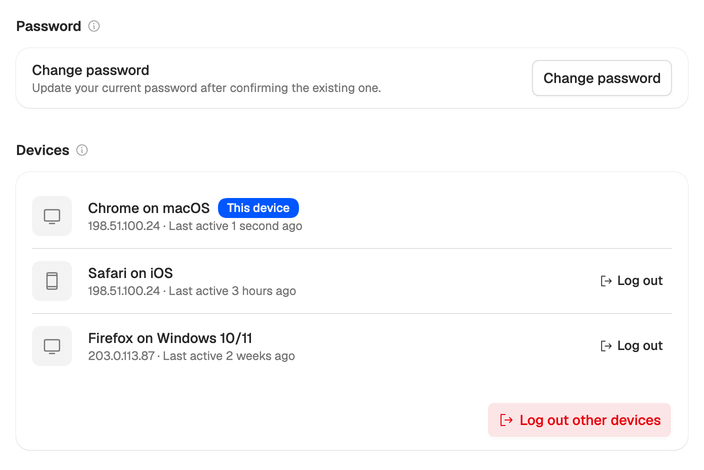
- Log out next to a device signs it out as soon as you confirm.
- Log out other devices signs out every device except this one. It asks for your password, or for Confirm with Google if you don’t have one.
To sign out of the device you’re on, choose Log out in the menu under your name.
See a device you don’t recognize? Log it out, change your password, then email support@neveshte.com so we can take a look.
To close your account altogether, see Delete your account.